# Set Up Microsoft Authenticator
When you are signing into your company e-mail, you may need to prove your identity using a Multi-factor Authentication (MFA) tool to gain access. Please follow the instructions below to set it up on your device.
### Pre-requisites for Setting Up Microsoft Authenticator
To set up Microsoft Authenticator for the first time you must:
- Have your mobile device and a computer in front of you before you begin.
Do not attempt to complete these steps using just a mobile phone.
- Review the instructions below before you start.
### Download Microsoft Authenticator for Your Mobile Device
Microsoft Authenticator is available for iPhone/iPad and Android devices. To download the correct app for your device:
1. Open this link on your computer: [https://www.microsoft.com/en-ca/security/mobile-authenticator-app#primaryR3](https://www.microsoft.com/en-ca/security/mobile-authenticator-app#primaryR3)
2. Open the camera app on your phone/tablet
3. Point your camera at the appropriate QR code for your device. (iOS for iPhone/iPad, Android for others)
4. A "link" should appear on your device.
5. Tap the link and your device will open the download page for the Microsoft Authenticator app.
6. Install the authenticator app on your device. It will be listed under your apps as either "Microsoft Authenticator" or simply "Authenticator".
7. Alternatively, you may manually visit the app store for your platform and search "Microsoft Authenticator" to perform the installation.
### Add Authenticator as a Sign-In Method
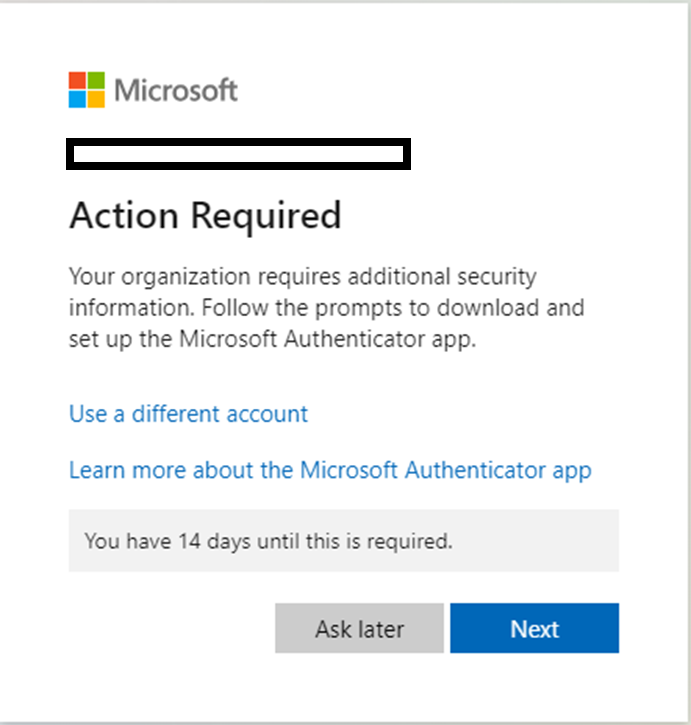
##### If you are prompted with "Action Required" when signing in:
1. 1. Ensure you have added the Microsoft Authenticator as described above.
2. Click ***Next*** until you see the QR code on your screen.
3. Continue to the "On Mobile Device" section below.
[](https://docs.forefrontsolutions.us/uploads/images/gallery/2024-06/oIjBczqLHBkxZBrc-image.png)
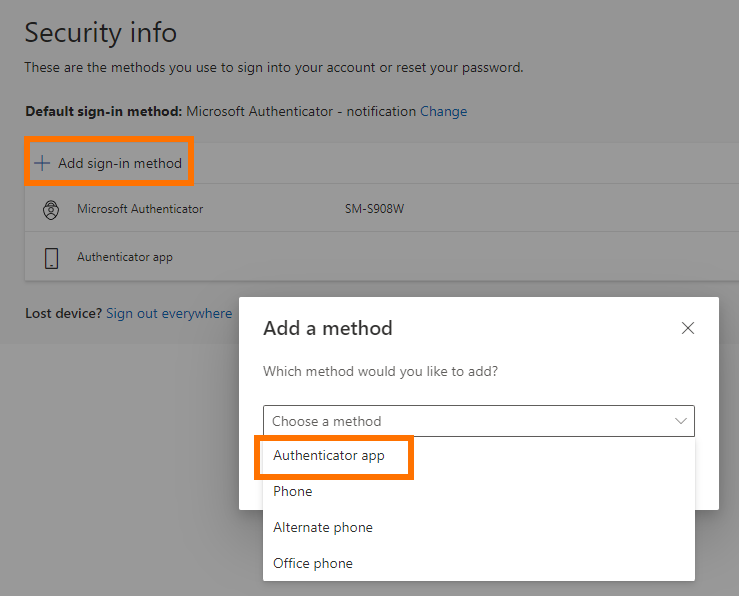
##### If you are adding Authenticator to an existing account:
1. 1. Open this link on your computer:[ https://mysignins.microsoft.com/security-info/](https://mysignins.microsoft.com/security-info/)
2. Sign in with your Microsoft credentials if prompted
3. Click the Add sign in method button on the left-hand side of your screen
4. Choose Authenticator app as your method
5. Click ***Next*** until you see the QR code on your screen
6. Continue to the "On Mobile Device" section below.
[](https://docs.forefrontsolutions.us/uploads/images/gallery/2024-06/cYajDk0c5UdPi5JM-image.png)
#### On Mobile Device
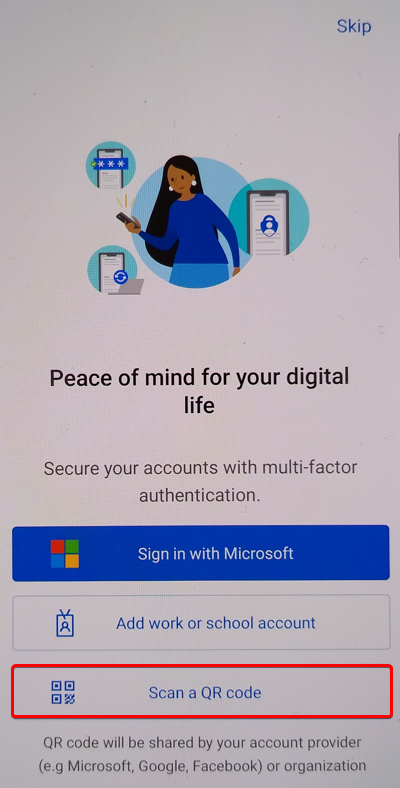
1. Open the app
2. Agree to the Privacy Statement and continue past the Help Us Improve request (if prompted)
3. Tap ***Scan QR code***
4. Allow the app to access your camera if prompted
5. Allow the app to send you notifications if prompted
[](https://docs.forefrontsolutions.us/uploads/images/gallery/2024-06/g96wG8ph9ESvfW5f-image.png)
#### Complete Authorization
1. On your computer: Click ***Next*** when you have successfully scanned the QR Code
2. Microsoft will send a confirmation notification to your device
3. On your mobile device: Tap ***Approve***
Authenticator setup is now complete.